
The Post Carousel block allows you to display a set of articles as a slideshow. You can show the most recently published, or restrict the articles that appear based on their category, tags, or author.
Using the Post Carousel block
To use the Post Carousel block, follow these steps:
- Edit the post or page where you would like to add the block.
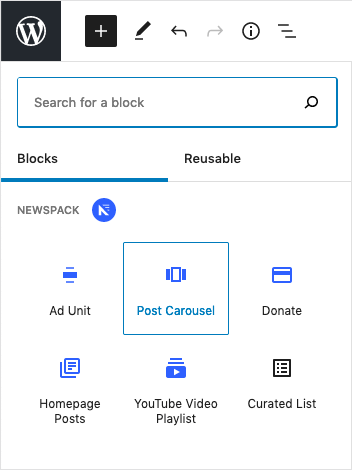
- Open the Gutenberg block inserter and search for Carousel, or scroll down to the Newspack section of the drop-down menu and choose the Post Carousel block.
Block Toolbar
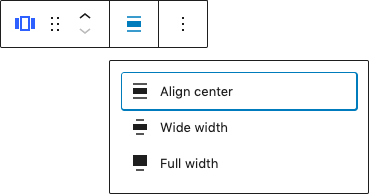
Selecting the Post Carousel block will bring up the block’s formatting palette.

From there, you can use the alignment option in the formatting palette to choose whether to display the block as Aligned Center, Wide Width (wide but with padding on both sides), or Full Width (spanning the screen from edge to edge with no padding).
Block Settings
When the Post Carousel block is selected, a number of display options will also be available in the right column.
Display Settings
The block’s Display Settings allow to you control what articles will be shown, including the following options.
- Number of items: Select the number of posts to display in the block. The default is three.
- Authors: You can choose to display posts by one or more authors.
- Categories: You can choose to display posts from one or more categories.
- Tags: You can choose to display posts from one or more tags.
Slideshow Settings
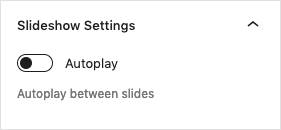
By default, the Post Carousel will not play automatically. You can enable that option by toggling on Autoplay under Slideshow Settings.
Article Meta Settings
The following meta settings are available.
- Show Date: This toggles showing or hiding the post dates in the block. The date is shown by default.
- Show Category: You can choose to show or hide each post’s Primary Category when Yoast is enabled, or first-assigned category when it is not. The category links to its archive page. The category is hidden by default.
- Show Author: You have the ability to show or hide the author(s) of the current post. Each author name links to an archive of all of their posts. The author is displayed by default.
- Show Author Avatar: You can choose to show or hide each author’s avatar. The author avatars are displayed by default.