
Newspack aims to empower our publishers with comprehensive data analytics, enabling you to effectively evaluate the success and progress of your site and growth goals. Given the changes that have come with GA4, some manual effort is needed on your side to fully activate all of the data measurement.
To view the events and parameters attached to the Newspack custom events outlined here, you’ll need to:
- Generate an API secret in GA and place it within Newspack.
- 25-72 hours after connecting the API, enable the parameters for custom dimensions.
Generating an API secret and connecting to Newspack
- In GA, select Admin
in the lower left corner.
- In the left column, select “Data collection and modification” > “Data Streams” > your site > “Measurement Protocol API secrets” listed under Events.
- You may be prompted to “Review Terms”.
- Select the button to “Create”, name your secret (E.g. Newspack), and select “Create” once more.
- Copy your newly created Secret value.
- Navigate to Newspack >Settings > Connections > Activate Newspack Custom Events.
- Paste your Secret value in the API Secret field.
- Your measurement ID can be accessed on your web stream details in GA, or from within Site Kit. It is the value prefaced with “G-“.

Once this step is complete, please give GA 24-72 hours to collect enough data before moving to the next step detailed below.
Creating custom dimensions
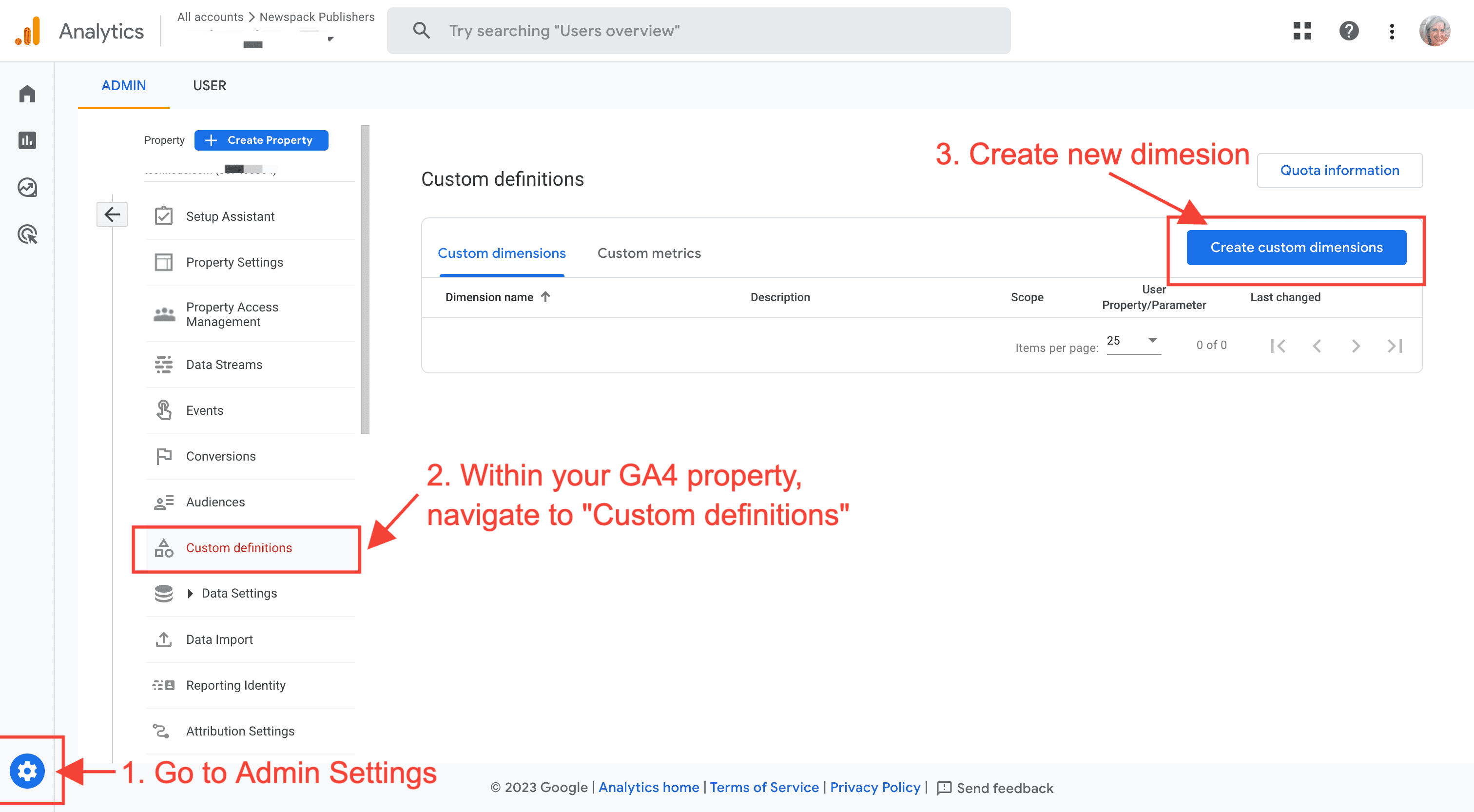
- First, navigate to your GA account’s Admin Settings by selecting the gear icon in the bottom left corner.
- Within your GA4 property, select “Data Display” > “Custom definitions.”
- Then the button for “Create custom dimensions”.
4. Select an “Event parameter” from the dropdown that you wish to turn into a dimension. We recommend giving the dimension the same name as the parameter for consistency. Keep the Scope as “Event”. The description field is optional.
Here are the event parameters we recommend creating a dimension for:
- action
- action_type
- amount
- author
- category
- donation_amount
- donation_recurrence
- is_reader
- is_newsletter_subscriber
- is_subscriber
- is_donor
- lists
- logged_in
- newsletter_subscription_method
- popup_id
- prompt_frequency
- prompt_id
- prompt_placement
- prompt_title
- product_id
- range
- recurrence
- referrer
- registration_method
Note that you will only see parameters in the drop-down for those that have been triggered on the site by user action. If you don’t see a parameter listed that you want to make a dimension, go to your site and perform the action (i.e., do a test donation, or complete a prompt). When at least one event has triggered, you’ll see the corresponding parameters in this list within a few hours.
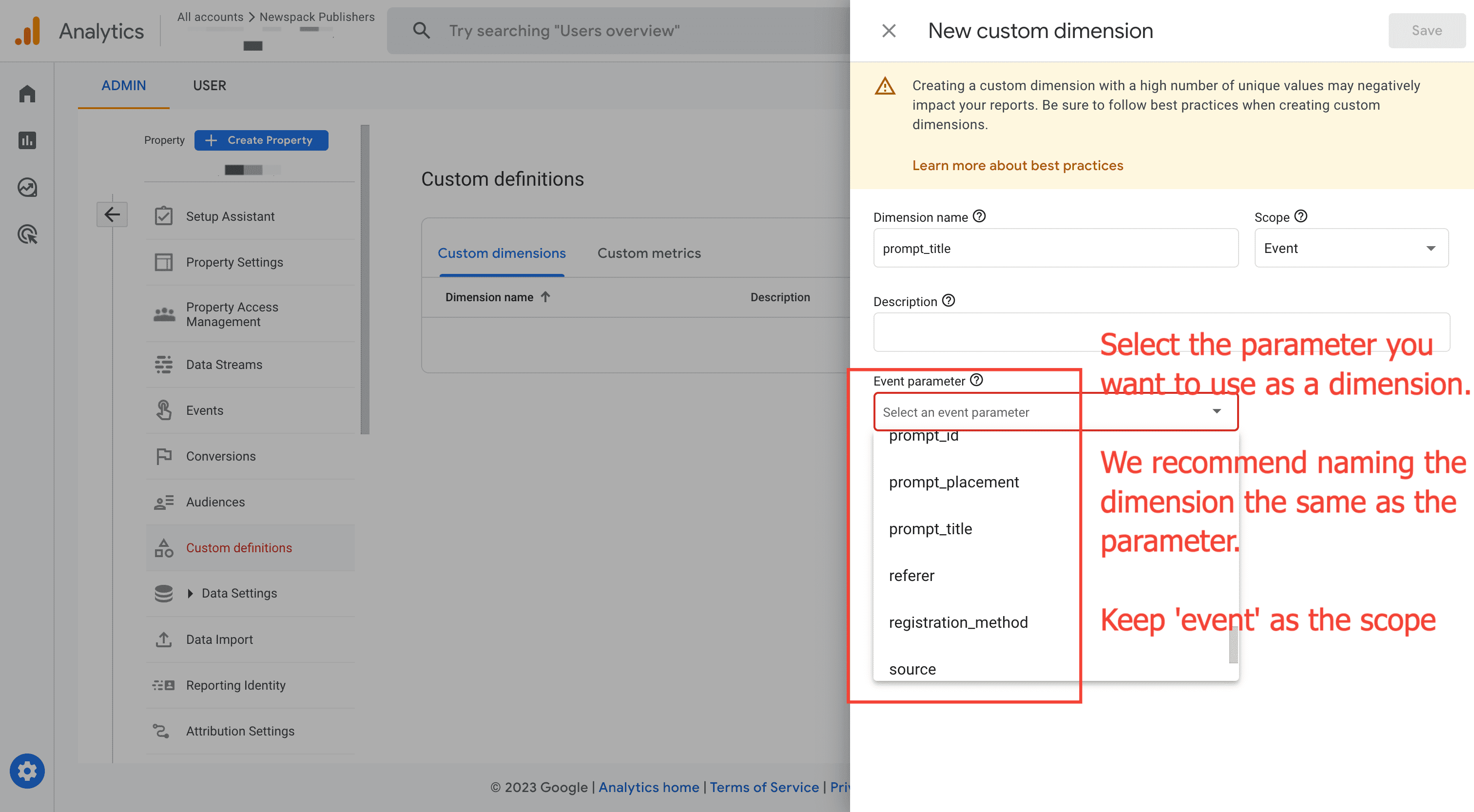
Once these have been set up as dimensions and have collected data for a few days, you’ll be able to create custom reports.