
The Newspack Themes currently come with three template options. The ‘default’ template, ‘One column’, and ‘One column wide’. These templates can be applied to posts and pages; the pages that WordPress generates itself (like the archive and search results pages) will use the two-column default template at all times.
Default template
The standard default template displays a 780px wide content area on the left side, and a 360px wide sidebar area on the right, where you can add widgets.
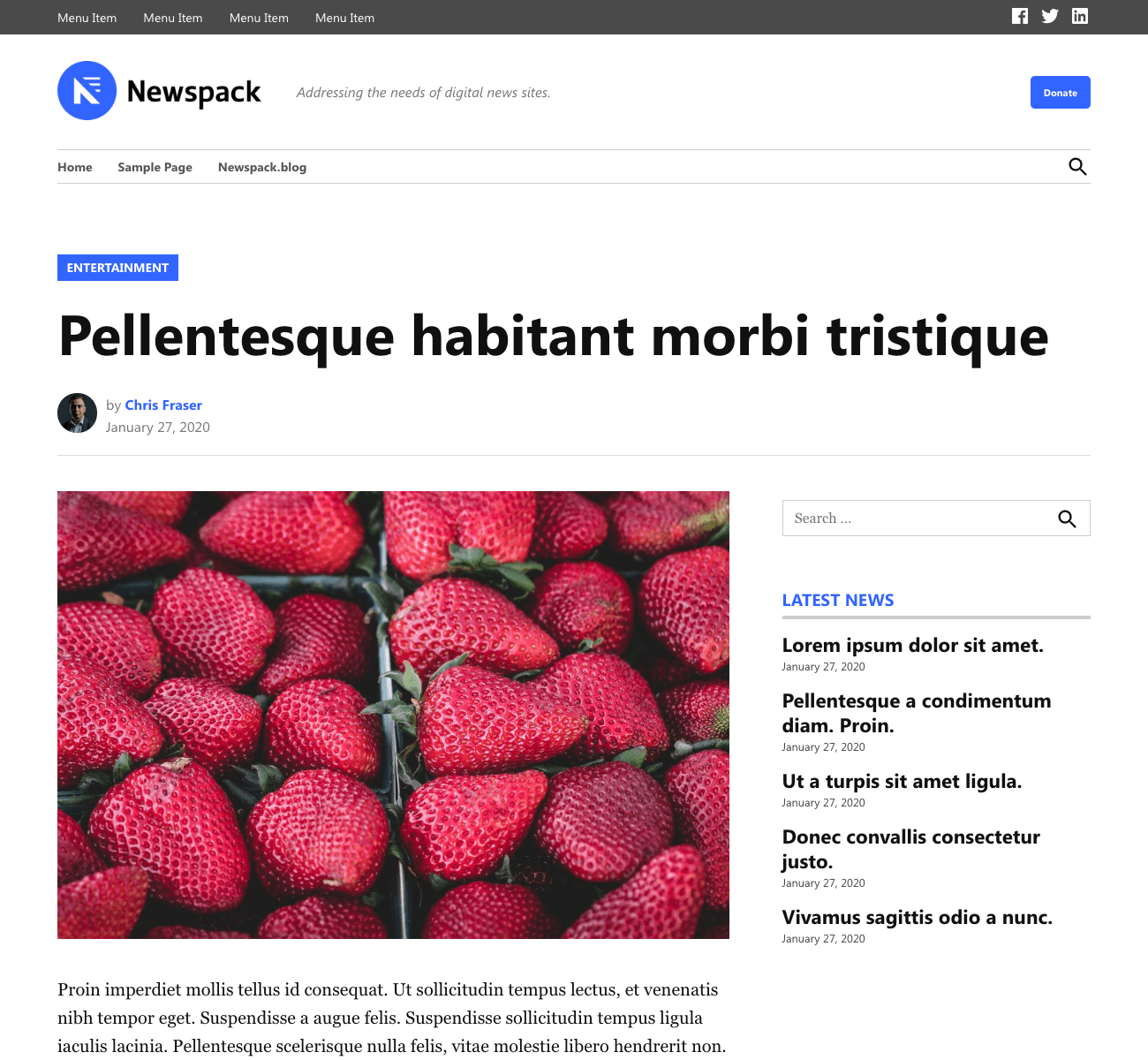
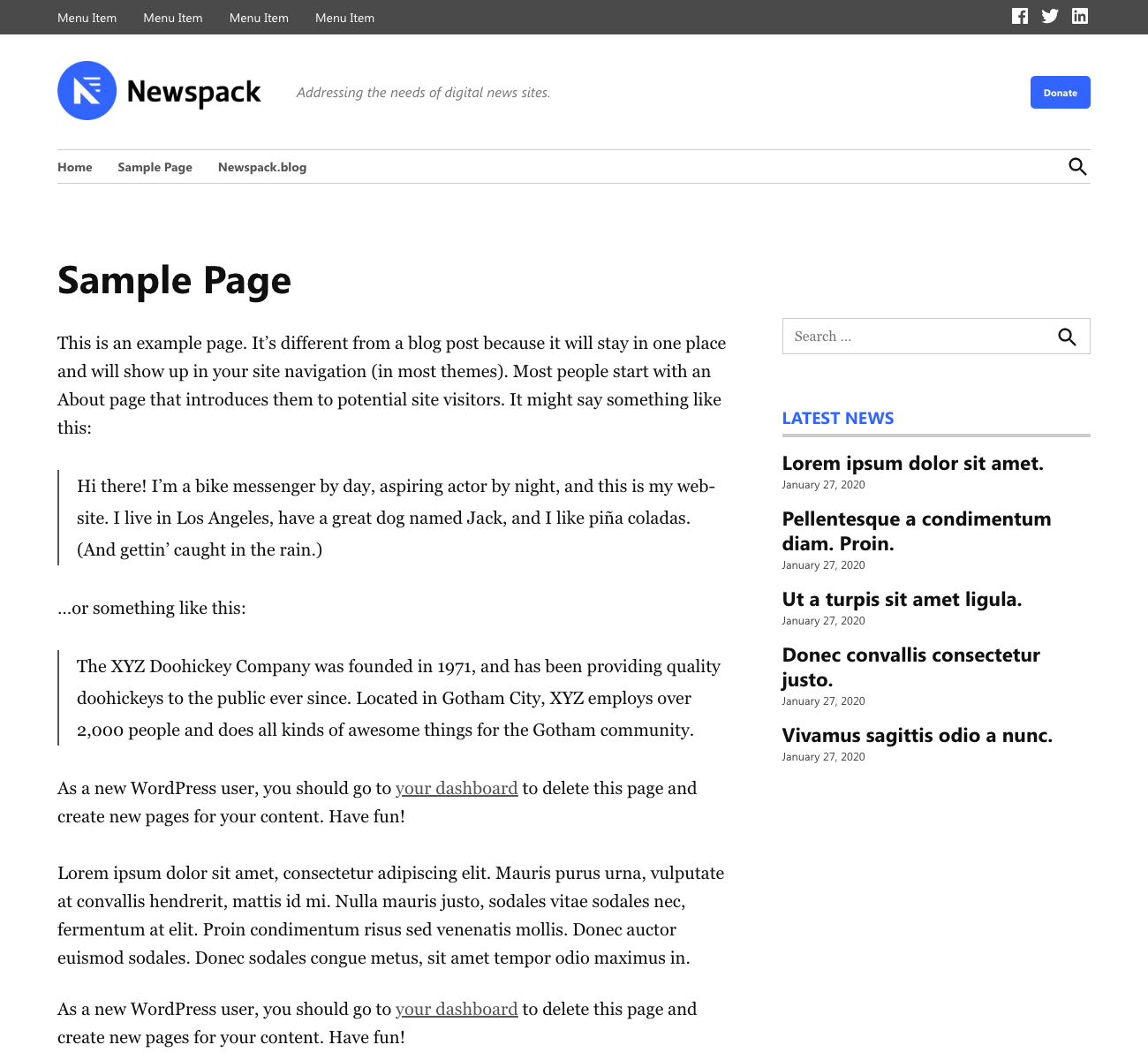

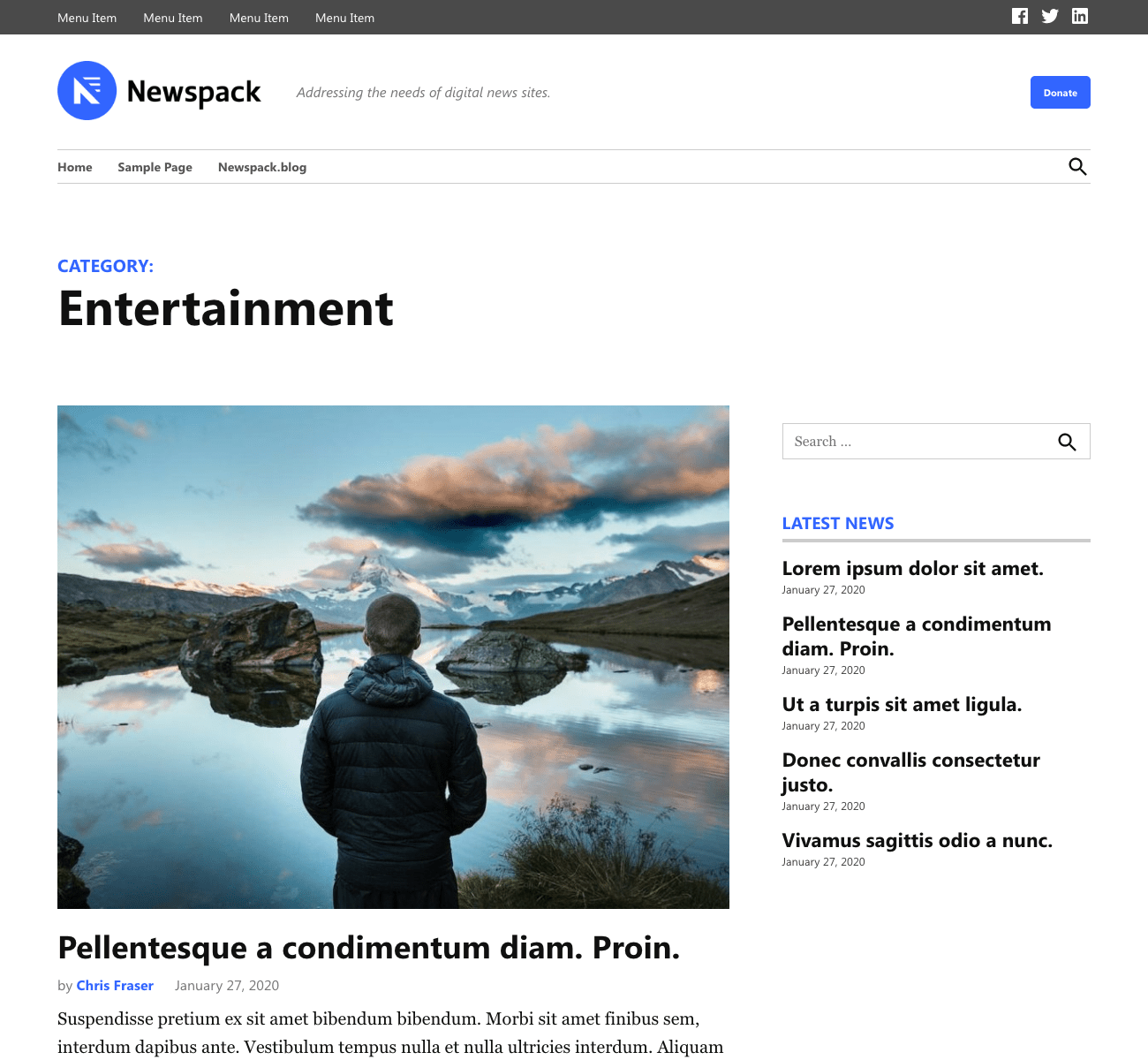
The one exception is the static front page, which uses the ‘One column wide’ template by default, and can only be switched to the ‘One column’ template. It’s strongly recommended this page is kept on the ‘One column wide’ template, for optimal space to create dynamic Gutenberg layouts.
Many widgets — like search, latest comments, or embeds like Facebook and Twitter — have been turned into blocks, so can still be used on the static homepage alongside other blocks.
One column
The ‘One column’ template has the same 780px wide content area as the default template, but it’s centered, and the sidebar is not present.
This template is ideal for features pieces and important pages, as it also allows you to use wide and full width blocks to create eye-catching layouts.

One column wide
The ‘One column wide’ template can be applied to posts and pages; it is also what’s used as the ‘default’ template on the static front page.
This template is intended to be used for homepage-like layouts, with multiple columns. It’s not recommended to use this template for text-centric posts and pages because longer lines of text are harder to read. In those cases please use the One Column template with wide and and full-aligned blocks.
The Small featured image placement will behave very similar to the Large featured image placement with this template, since the Small featured image is displayed as wide as the template content.

The content area for this template is 1200px wide.
Changing templates
To change a template on a post or page, follow these steps:
- Edit the post or page you’d like to change the template on.
- In the right sidebar, select Post or Page tab at the top. If the right sidebar is not visible in the editor, it can be opened by clicking the cog icon in the top-right corner:

- Open the Template section hear the top — inside, there will be a dropdown that will include the theme’s different template options:

- Pick the template you’d like to use, and click Update.
Note: When moving between different templates, the editor doesn’t immediately update to show the correct content width, or display the wide and full blocks as they would be on the front page. Refreshing the page after saving the template change will correct this.
Setting a new default post template
By default, new posts will use a two-column template. You can change what’s used for the default for all future posts by following these steps:
- Navigate to Customizer > Template Settings.
- Under Default Post Template, select a new default template for new posts (either One Column, or One Column Wide).
- Click Publish.
Now any future posts you create will automatically be set to use this new default template in the Post Attributes panel.
Changing the post template site-wide
The Newspack Style Wizard also has an option to change the template for all published posts on the site. This option cannot be undone — while you can change the template of all posts again, if different posts are using different templates, you will lose that variety.
To do this:
- Navigate to Newspack > Site Design, and click on the Settings tab.
- Under the “Featured Image Position And Post Template For All Posts” header, use the “Template for all posts” dropdown to pick a new template. You will see a warning that this change will affect all published posts on the site:

- Click ‘Save’ to apply this new template, and use the modal that appears to confirm that you’d like to make this change.
Templates
- Default template
- One column template
- One column wide template
- Changing templates
- Setting a new default post template
- Change the post template site-wide
Theme Table of Contents